Everyday work
Share a link or a guest process
Let someone view a checklist, or check off a running process without an account.
There are three different ways to let someone else see the work. They are not interchangeable. A read-only link cannot check tasks. A guest process can. A collaborator can edit.
Read-only link
On the checklist, the Share panel is open on the right. Read-only link is an address that starts with /s/. Anyone with that address can read the checklist. They cannot check tasks, reorder them, or change the name.
Edit URL is the address you use while signed in. Do not send that one to someone who should only look.
Guest process
A guest process is for the person who has to do the steps and does not have a Checkli account: a substitute, a closer, a vendor. It requires a Pro plan on the account that owns the checklist.
- Start a process so you have a run, not only the master list. Guest checks belong on the run.
- Open that run and look at Read-only link.
- Copy it, and change
/s/to/g/. The rest of the address stays the same. - Send that
/g/address to the person doing the work.
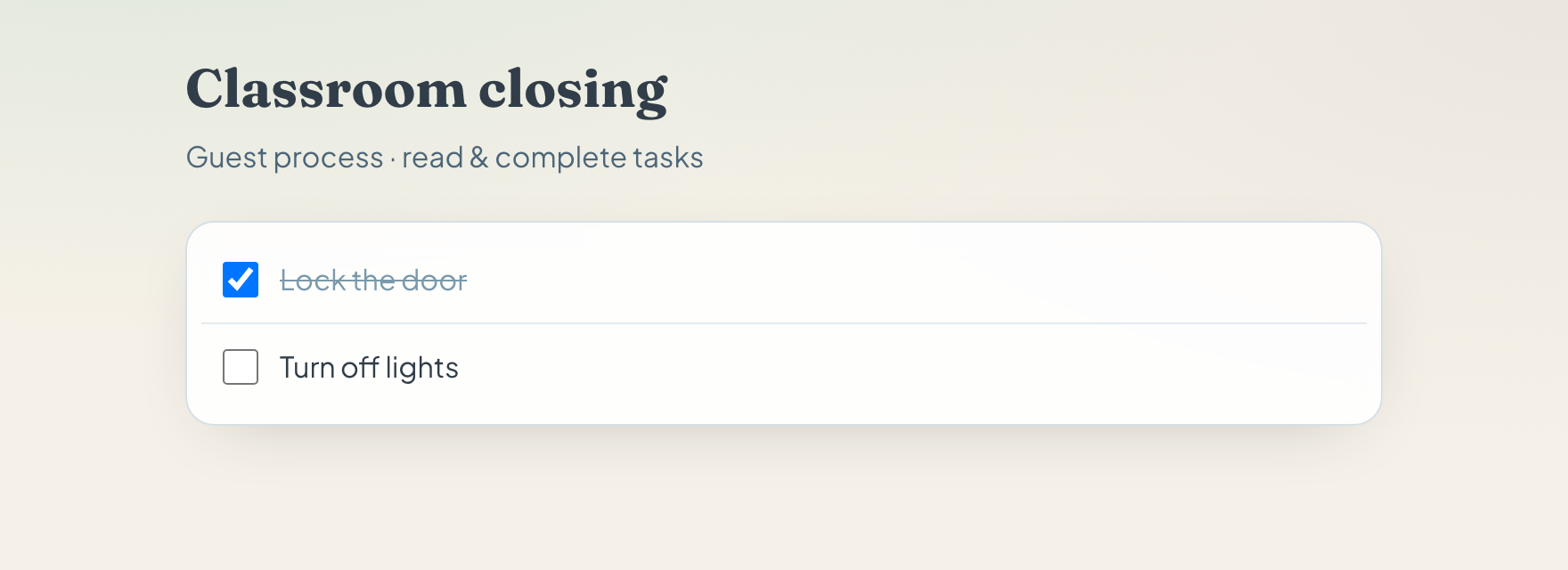
They see the checklist name, the line “Guest process · read & complete tasks”, and a checkbox for each step. No sign-in page. When they check a task, it is saved as completed by Guest. You see that progress on the run.
If the owner is not on Pro, the guest page explains that the link requires a Pro plan and does not save checks.
Invite a collaborator
On the same Share panel, Invite collaborator takes an email address. Click Send invite.
- If that email already belongs to a Checkli account, they are added as a collaborator and can open the checklist.
- If it does not, the address stays in the list as pending. You can cancel it.
A collaborator is not the same as a guest. They have an account and can work on the checklist itself. Remove someone with Revoke.
Publish to the public page
Publishing is for a checklist you want on a public page, such as a template other people can find. It is stricter than sharing a link:
- The checklist needs a name.
- It needs a category.
- It needs at least five open tasks.
- No task can be checked.
Pick the category in the Share panel and click Publish. After it publishes, the panel shows a Public page address. If something is missing, Checkli tells you which requirement failed.
Export and embed
On Pro, the Share panel includes CSV and PDF. CSV is a spreadsheet of the tasks. PDF is a printable copy.
Embed, also on Pro, creates a page you can place on another site. You set the button, background, and text colors, then copy the embed address. If someone submits an email on that embed, it is listed under Leads on the checklist.
Example
The lead starts “Classroom closing”, copies the run’s read-only link, and changes /s/ to /g/. She texts that to the substitute. The substitute checks “Lock the door” on their phone. The lead opens the run and sees that task done, completed by Guest.