Everyday work
Tasks, order, and folders
Reorder steps, add sections and notes, and keep the library findable.
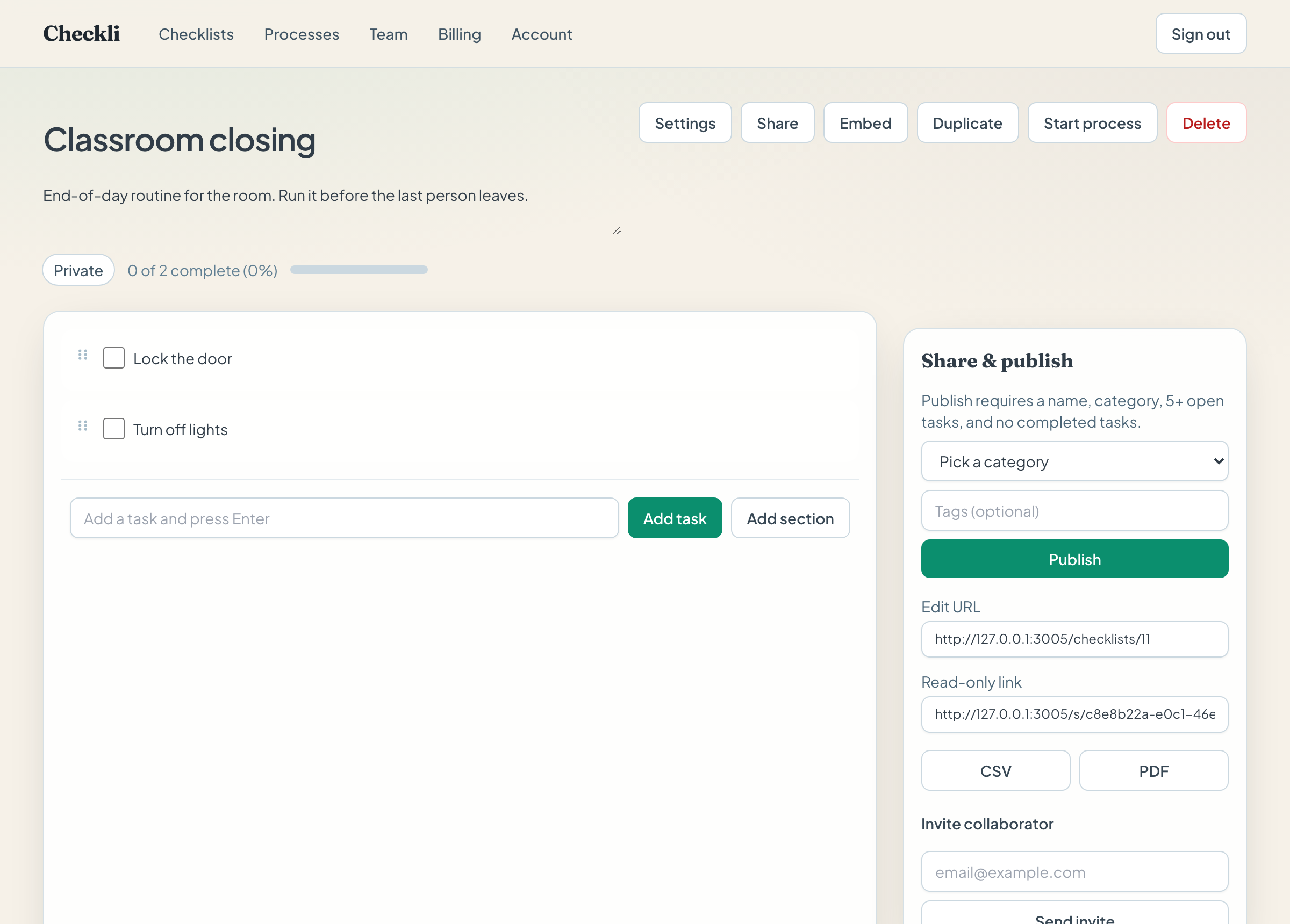
The checklist page is where the process lives. The steps are on the left. Share, export, and reminders are on the right.
Put the steps in order
Grab the dotted handle on the left of a task and drag it. “Lock the door” should come after “Turn off lights” if that is how the room actually closes. The new order is saved when you drop the task.
Hover a task to use the small controls on the right:
- ☆ marks the task as a priority. It shows a Priority label on the row.
- ⇥ indents the task, so it reads as part of the step above it.
- + inserts a new task directly underneath.
- ⋯ opens due date, assignee, time limit, notes, and sub-items.
- × deletes the task. Checkli asks you to confirm.
Sections, notes, and sub-items
Add section inserts a heading, such as “Before you leave the building”. Rename it the same way you rename a task. Sections are not checkboxes.
Open ⋯ on a task when one step needs more than a name:
- Due date is a date on that task. It is separate from a checklist reminder.
- Assignee is a person who can already open this checklist.
- Time limit is a short note such as “10m”. It does not start a timer.
- Notes hold the detail that does not belong in the task name. For “Turn off lights”, the note might be “Bank by the door, then the closet”.
- Sub-items split a step. “Lock the door” might have “Close the windows” and “Set the latch”.
Checking the box on a task records it done and shows your name on that task. Uncheck it to clear that.
Folders and search
On Checklists, type a folder name and click Add folder. Open Settings on a checklist and choose that folder, then Save settings. The library can show one folder at a time. Search checklists… filters the list you are looking at.
Pin to top, also in Settings, keeps a checklist at the top of the library.
Settings that change how it looks
On a Free plan, Settings still covers visibility, folder, category, tags, a featured image, and pin. Appearance is on Pro: check style, one or two columns, and colors and fonts for the background, title, tasks, and checkmarks. Click Save appearance or Save theme after those changes.
Duplicate makes another checklist with the same steps. On the free plan, duplicating counts toward the two-checklist limit. If you are already at the limit, the button becomes a link to billing.
Example
A preschool lead builds “Classroom closing” with a section called “Room” and tasks under it. She indents “Set the latch” under “Lock the door”, and puts the closet note on “Turn off lights”. The checklist stays the master copy. She does not check the tasks on this copy when she wants a record of Tuesday — she starts a process instead.