Everyday work
See every run
On Business, watch open and finished runs, get an email when one finishes or stays open, and keep a record of who checked each step.
On Business, Building lists every run, including ones you did not start.
Open Building
- Open Processes.
- Click Building.
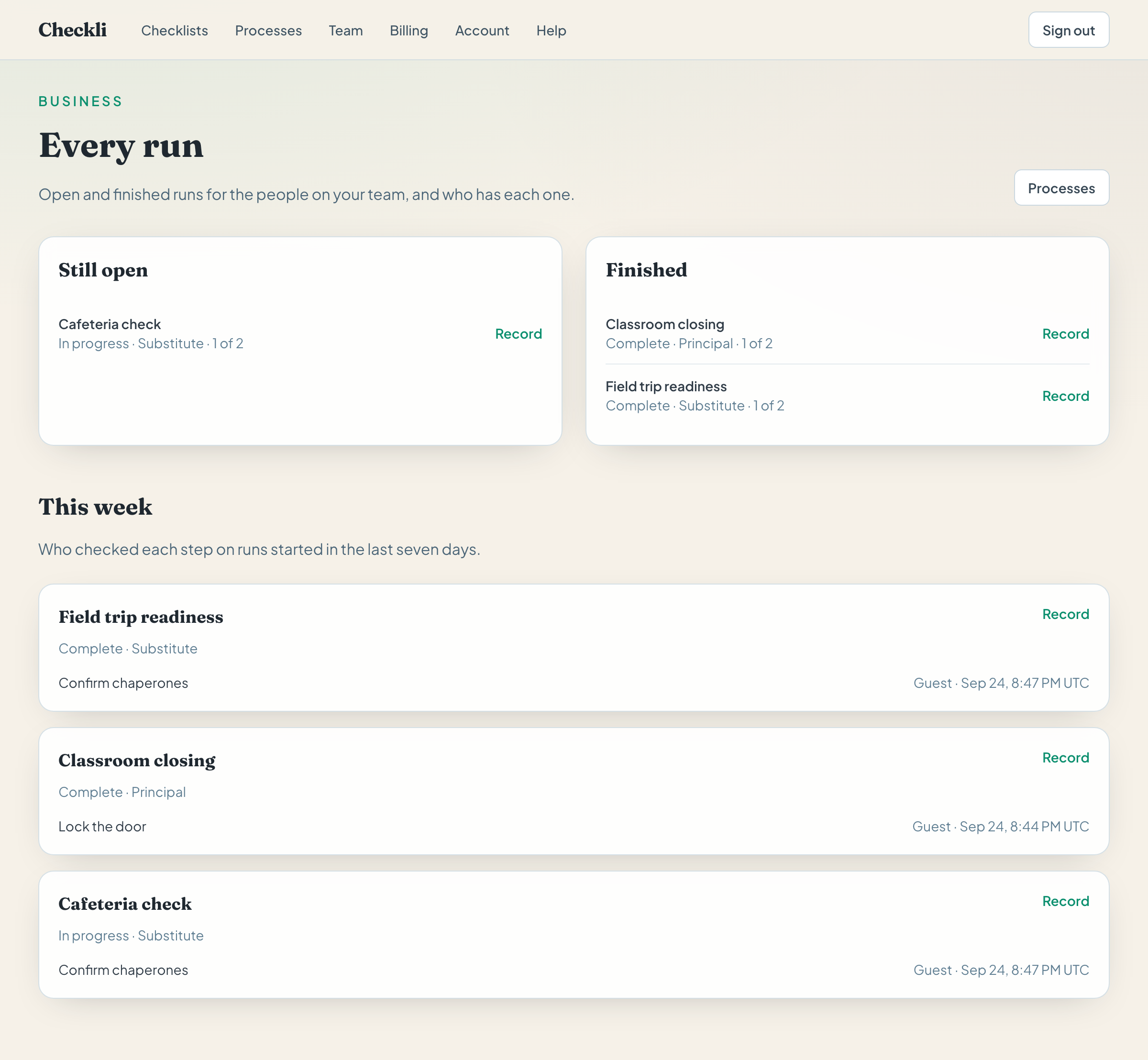
Still open and Finished show who has each run. This week shows who checked a step.
Read the record
- Click Record. The same link is on the run’s checklist, next to Start process.
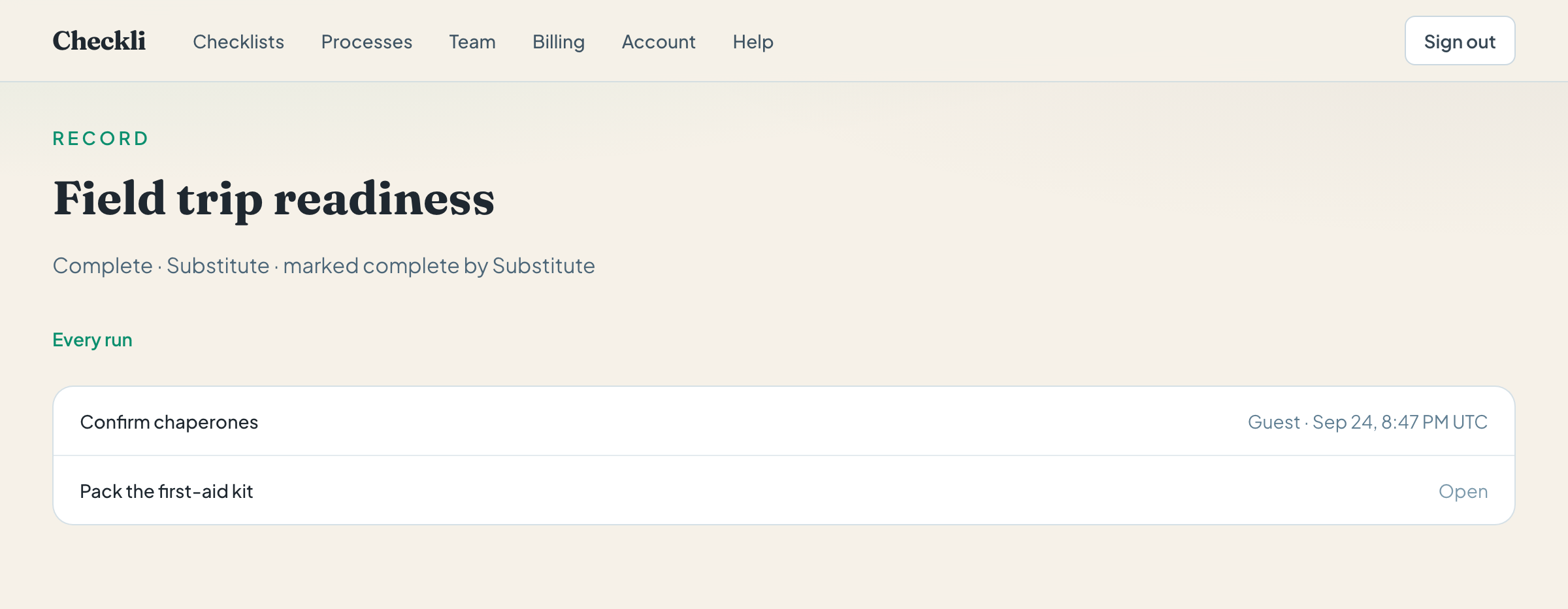
A checked step shows the name and time. An open step says Open. A guest who did not enter a name is listed as Guest. “Lock the door” can be checked while “Turn off lights” is still open.
When the email goes out
Checkli emails the team admin on a Business plan. With no team, it emails the owner. It looks about once an hour.
- Someone else clicks Complete. Subject: “Finished:” and the checklist name. The message links to the record.
- You complete your own run. No email.
- A run is still open eight hours after it started. Subject: “Still open:” and the checklist name. Sent once.
A reminder is a separate email. See Reminders.
Example
A principal opens Building. “Classroom closing” for the substitute is still open, and Guest has checked “Lock the door”. Eight hours after the run started, Checkli emails the principal. When the substitute clicks Complete, a second email says it is finished.