Start
Create your first checklist
Register, name a checklist, and add the steps people should follow.
A checklist in Checkli is the process itself: the name of the work, and the steps in the order they should happen. You build it once. Later you can run that same list again without rewriting it.
1. Create an account
- Open Start for free and enter your name, email, and a password.
- Checkli sends a confirmation link to that email. You can start using the app as soon as you are signed in.
- If you already have an account, use Log in.
Your plan, email, and a button to resend the confirmation link are on Account.
2. Name the checklist
- On Checklists, click New checklist.
- Name it the way someone would look for it. “Classroom closing” is better than “List 1”.
- Click Create checklist.
The title stays editable. Click it and change the words; Checkli saves when you leave the field. The description under the title works the same way. A useful description says when the list should be used: “End-of-day routine for the room. Run it before the last person leaves.”
3. Add the steps
- In Add a task and press Enter, type the first step. For the classroom example, that is “Lock the door”.
- Press Enter, or click Add task.
- Add the next step, “Turn off lights”.
Write each task as an action a person can finish. “Lights” is vague. “Turn off lights” is a step.
Example
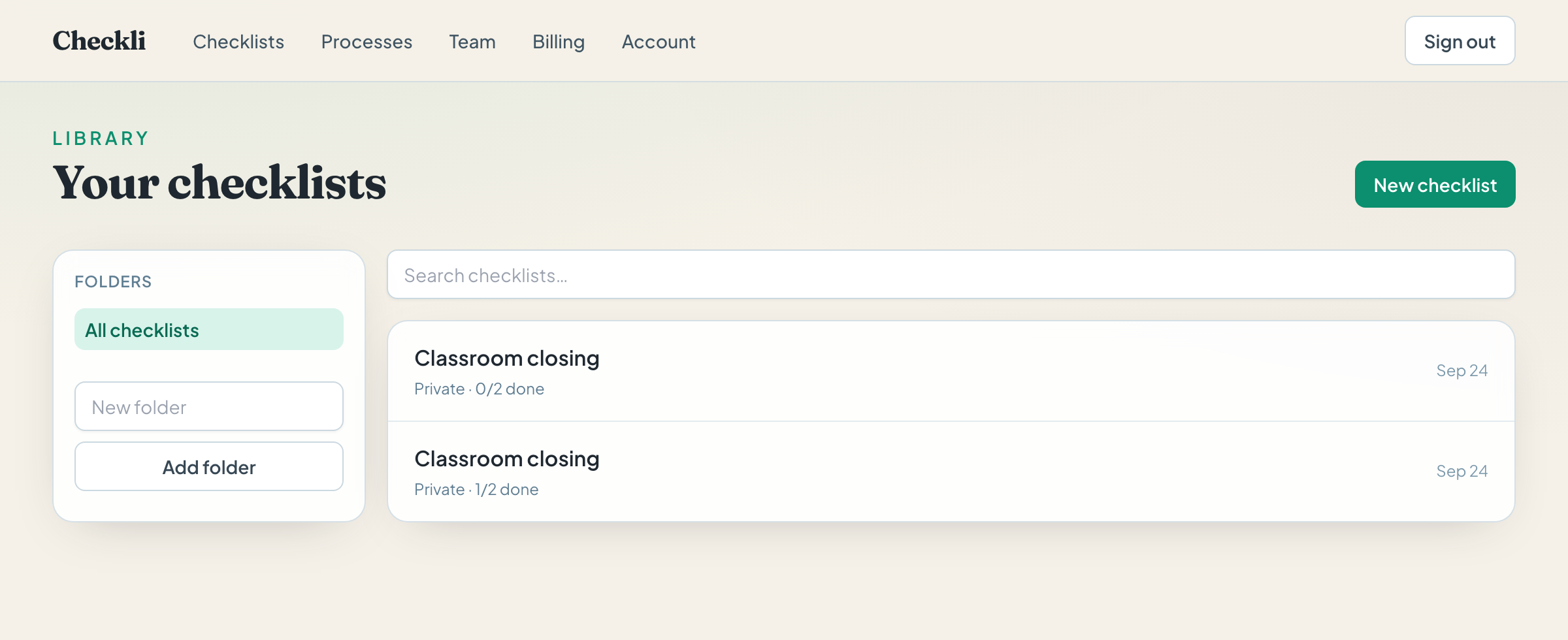
Classroom closing
- Lock the door
- Turn off lights
Two steps are enough to learn the app. A real closing routine will be longer. Free accounts can keep up to two checklists.
What you have now
The checklist is private. Only you, and anyone you later invite, can open the edit page. The progress line shows how many tasks are checked, for example “0 of 2 complete”.
Next, put the steps in the order the room actually closes, then start a run when it is time to do the work.