Everyday work
Run a process again
Start a run from a checklist, mark it complete, and see it on the calendar.
Starting a process copies the checklist into a new run. The original list stays as the master. Each run has its own checks, so Tuesday’s closing does not wipe Monday’s.
Start a run
- Open the master checklist. In the example, that is “Classroom closing”.
- Click Start process.
- Checkli opens a new checklist with the same name and the same steps, all unchecked. A notice says the process started.
Both copies appear in the library. The progress line tells them apart: the master might still say “0 of 2 done”, while the run changes as tasks are checked.
Check the tasks on the run, not on the master, when you want a record of that time. The master is what you edit when the routine itself changes.
Mark the run complete
- Open Processes.
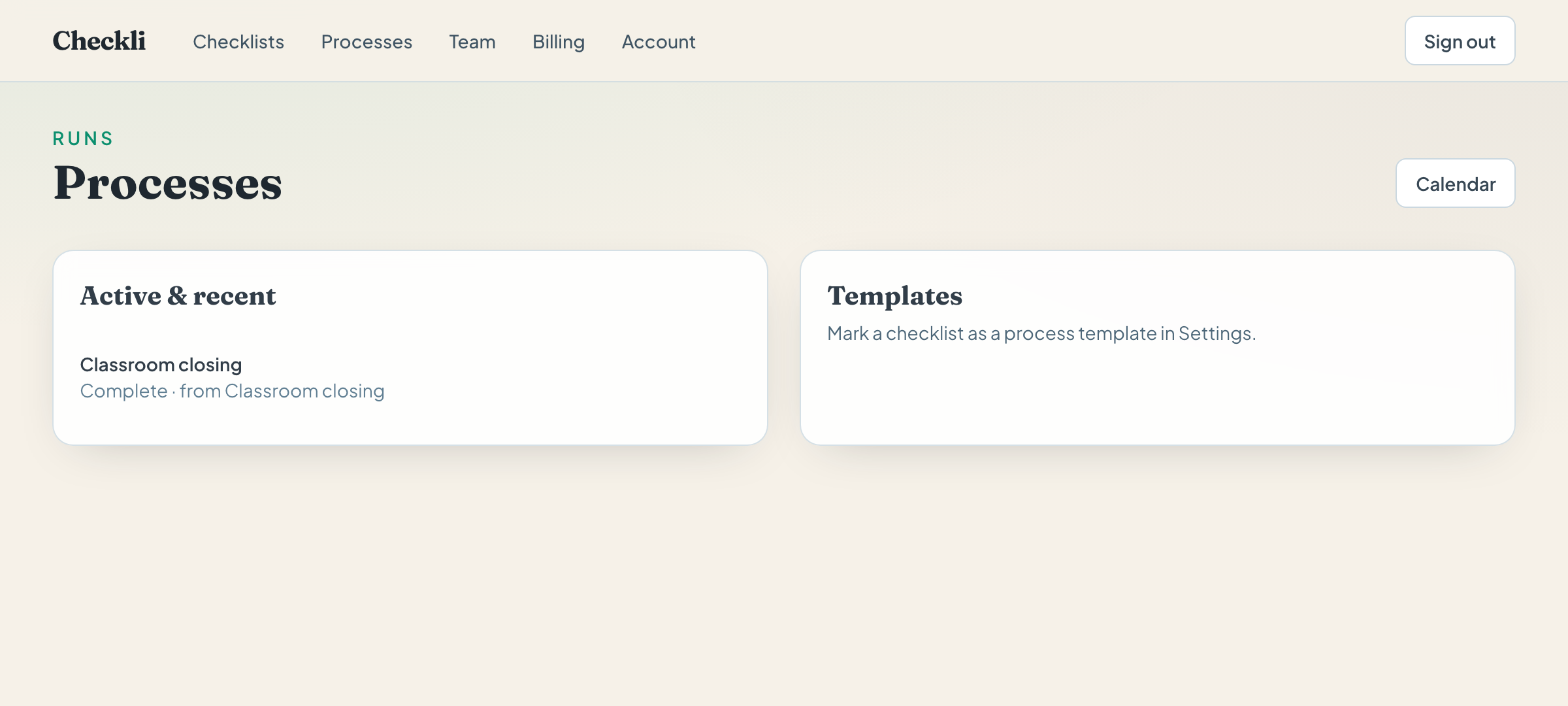
- The run is listed under Active & recent, with “In progress” and the name of the checklist it came from.
- Click Complete when the work is finished.
That records the run as complete, including who marked it and when. Checking individual tasks is separate: you can mark the run complete even if a box is still open, and you can check boxes without using the Complete button.
Building and the completion email are in See every run.
Calendar
Calendar on the Processes page shows runs on the day they were started. Move between months with Prev and Next. List returns to the process list.
Process templates
In Settings, Visibility can be Private, Published, or Process template. Choose Process template and save when this checklist should show up under Templates on the Processes page, with its own Start button. That is useful when several people start the same routine and you do not want them editing the master by accident.
Example
At 3:00 the lead opens “Classroom closing” and clicks Start process. The substitute checks “Lock the door” on the new copy. On Processes, the lead clicks Complete. Tomorrow she starts again from the same master, and both days stay in the list.
Assigning a run to someone on your team
On a Team plan, the Share panel includes Start process for teammate. Choose the person, add a note if you need one, and click Assign & start. The run is created on their account. Inviting someone to a team is covered in Plans and billing.